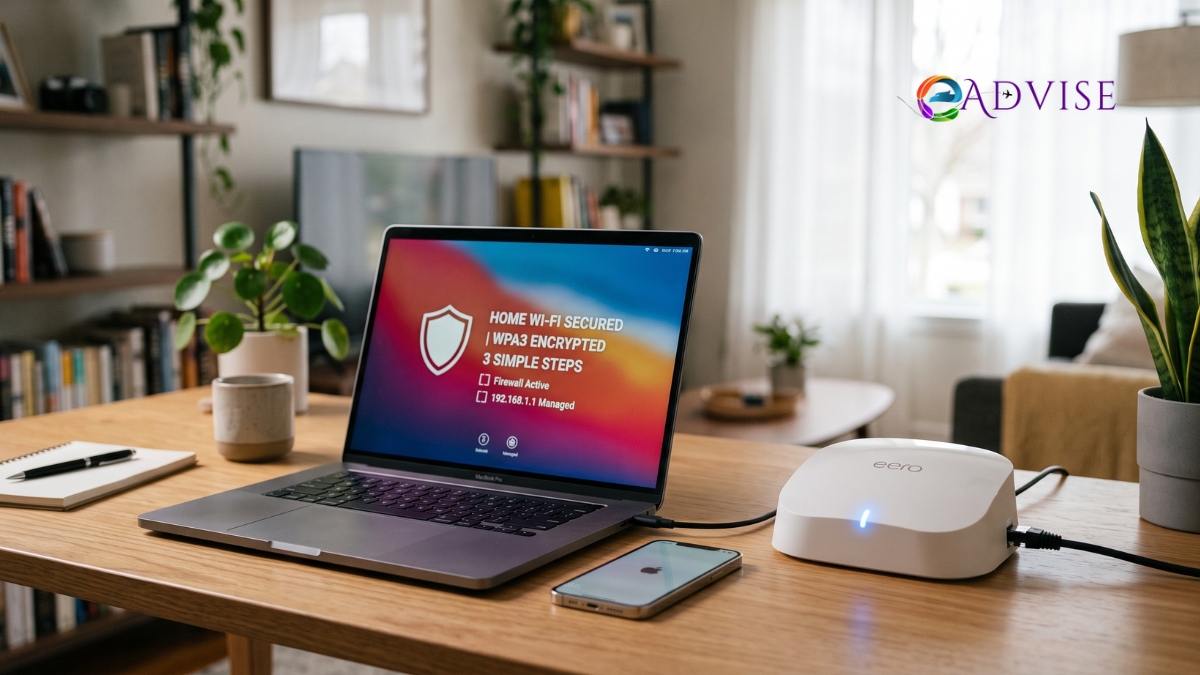


Your home Wi-Fi network is the digital front door to your entire life. Think about everything connected to your router right now: your laptop containing banking records, your smartphone synced with personal photos, smart speakers listening for voice commands, smart locks, baby monitors, and work computers holding confidential company files.
When people think about cybersecurity, they usually worry about malicious email attachments or suspicious downloads. However, an unsecured wireless router gives attackers a direct path into every connected device in your household. If a bad actor gains access to your home Wi-Fi, they can intercept unencrypted network traffic, redirect you to convincing fake banking portals through DNS hijacking, recruit your smart gadgets into global botnets, or exploit local network vulnerabilities to deploy ransomware.
Fortunately, securing your home network does not require an advanced degree in network engineering. By following a clear, structured approach, you can eliminate the vast majority of wireless vulnerabilities. Here is the definitive, three-step guide on how to secure home wifi network infrastructure against modern cyber threats.
Table of Contents
Fortify the Router Gateway (Hardware and Access Hardening)
Your wireless router acts as the border checkpoint between the public internet and your private local devices. If the gateway itself is poorly defended, every software firewall on your laptops and phones becomes significantly less effective. Fortifying this hardware entry point is your first critical line of defense.
+-------------------------------------------------------------------+
|                     THE HARDWARE GATEWAY                          |
|                                                                   |
|   [ Public Internet ]  <--->  [ Router / Firewall ]               |
|                                        |                          |
|         +------------------------------+--------------------+     |
|         |                              |                    |     |
|  [ Admin Credentials ]         [ Firmware Updates ]   [ Kill WPS ]|
|  (Replace factory logins)      (Patch known CVEs)     (Stop brute)|
+-------------------------------------------------------------------+
Change Default Router Password and Administrative Usernames
Every router ships from the factory with a standard administrative username and password. Common defaults like admin/admin, admin/password, or blank entries are publicly indexed in online databases. Hackers and automated vulnerability scanners routinely probe public IP addresses using these factory credentials.
To prevent wifi hacking at home, you must distinguish between two different passwords:
- The Wi-Fi Network Password (WPA Key): The password your phones, laptops, and smart TVs use to join the wireless signal.
- The Router Administrator Password: The master key used to log into the web-based configuration panel (usually accessed via
192.168.1.1or192.168.0.1in a browser).
Leaving the admin credentials at their factory settings allows anyone within range of your Wi-Fi, or anyone who exploits a cross-site scripting vulnerability in your browser, to take full administrative control of your hardware.
+--------------------------------------------------------------------+
|                ROUTER PASSWORD ARCHITECTURE                        |
+--------------------------------------------------------------------+
|  1. Router Admin Password (Gateway Control)                        |
|     * Accesses internal routing tables, DNS, and firewall settings |
|     * Must be 16+ characters, stored in a password manager         |
+--------------------------------------------------------------------+
|  2. Wi-Fi Network Key (Signal Authentication)                      |
|     * Used by phones, laptops, and streaming devices               |
|     * Must use WPA3 or WPA2-AES encryption                         |
+--------------------------------------------------------------------+
When you change default router password configurations:
- Log into your router’s administrative dashboard using an Ethernet cable or your current Wi-Fi connection.
- Navigate to Administration, System Settings, or Management.
- Change the default username if your hardware allows it. Avoid generic names like
adminor your family surname; choose an ambiguous string. - Create a strong, unique administrative passphrase that is at least 16 to 20 characters long. Combine uppercase letters, lowercase letters, numbers, and symbols. Store this securely in a dedicated password manager.
Disable WPS and Remote Management
Two legacy features found on most consumer routers present severe security risks: Wi-Fi Protected Setup (WPS) and Remote Web Management.
+------------------------------------------------------------------+
|                     CRITICAL SERVICES AUDIT                      |
+--------------------------+---------------------------------------+
| Feature                  | Security Recommendation               |
+--------------------------+---------------------------------------+
| Wi-Fi Protected Setup    | ALWAYS DISABLE (Vulnerable to brute-  |
| (WPS)                    | force PIN extraction via Reaver)      |
| Remote Administration    | ALWAYS DISABLE (Exposes admin panel   |
| (WAN Management)         | directly to the public internet)      |
| UPnP (Universal Plug     | DISABLE unless strictly required      |
| and Play)                | for automated port forwarding         |
+--------------------------+---------------------------------------+
Wi-Fi Protected Setup (WPS) was designed to simplify connections between routers and devices using an eight-digit numeric PIN or a physical push-button. Unfortunately, the PIN architecture contains a major structural flaw. The router verifies the first four digits and the last three digits independently, reducing the possible combinations from 100 million down to roughly 11,000. Using automated tools like Reaver, an attacker within wireless range can crack a WPS PIN in a matter of hours, revealing your primary Wi-Fi password regardless of how complex it is.
Remote Management (also called WAN Management or Remote Administration) allows you to log into your router’s configuration panel from outside your home over the open internet. Unless you are a network engineer managing a distributed enterprise infrastructure, there is no valid reason to leave this port open. Leaving remote management enabled exposes your login screen to millions of automated internet botnets scanning for open ports daily.
To close these entry vectors:
- In your router dashboard, locate Wireless Settings or Advanced Setup.
- Find the toggle for WPS or Wi-Fi Protected Setup and switch it to Disabled or Off.
- Go to Remote Management, Remote Access, or Web Access from WAN.
- Ensure that remote access over the WAN interface is completely Disabled. Set management access strictly to local LAN connections.
Update Firmware Regularly or Enable Automatic Updates
Routers run specialized embedded operating systems known as firmware. Like Windows, macOS, or iOS, router firmware regularly suffers from newly discovered bugs, logic flaws, and zero-day vulnerabilities. If hardware manufacturers discover a flaw that allows unauthorized remote code execution, they issue a firmware update to patch it.
If you never update your router, you leave known security holes wide open. Cybercriminals continuously scan residential IP blocks for unpatched models to construct distributed denial-of-service (DDoS) botnets (such as Mirai and its variants).
Check your router administration dashboard under Firmware Update or System Maintenance. If your router supports Automatic Updates, turn this feature on immediately. If your router requires manual maintenance, set a recurring calendar reminder once every quarter to check the manufacturer’s official support page, download the verified binary image, and apply the patch.
If your router was manufactured more than five to seven years ago and the vendor no longer releases security patches, that device has reached its End-of-Life (EOL). Replace aging hardware with a modern router that receives active security maintenance.
Step 2: Upgrade Wireless Encryption and Network Architecture
Securing the router hardware is only half the battle. You must also secure the radio waves broadcasting your data through the air and segment your network to limit the damage if a single device gets compromised.
+-------------------------------------------------------------------+
|                   SEGMENTED HOME ARCHITECTURE                     |
|                                                                   |
|                        [ Wireless Router ]                        |
|                                 |                                 |
|         +-----------------------+-----------------------+         |
|         |                                               |         |
|  [ Primary Network ]                             [ IoT / Guest ]  |
|  - WPA3-Personal                                 - WPA2/WPA3 Mixed|
|  - Laptops, Phones, NAS                          - Smart Plugs    |
|  - Work Devices                                  - Smart TV / Cams|
|  (Full inter-device access)                      (Device Isolated)|
+-------------------------------------------------------------------+
Enable WPA3 Wi-Fi Security Protocol
Wireless encryption scrambles the radio signals passing between your devices and your router, preventing eavesdroppers from intercepting your raw data packets. The cryptographic protocol you select makes a massive difference in your baseline defense.
+-------------------------------------------------------------------+
|               WIRELESS ENCRYPTION EVOLUTION                       |
+----------+---------------+----------------------------------------+
| Protocol | Status        | Vulnerability Profile                  |
+----------+---------------+----------------------------------------+
| WEP      | Obsolete      | Broken; crackable in under 60 seconds  |
| WPA      | Deprecated    | Vulnerable to TKIP collision attacks   |
| WPA2-TKIP| Deprecated    | Outdated cipher suite; avoid           |
| WPA2-AES | Secure        | Strong standard; reliable legacy choice|
| WPA3-SAE | Most Secure   | Resistant to offline dictionary attacks|
+----------+---------------+----------------------------------------+
WPA3 (Wi-Fi Protected Access 3) is the gold standard for consumer wireless security. It replaces the older Pre-Shared Key (PSK) exchange with Simultaneous Authentication of Equals (SAE), also known as the Dragonfly handshake.
This architectural change yields two critical protections:
- Protection Against Offline Dictionary Attacks: Under WPA2, an attacker can capture a four-way handshake from the air and use high-powered graphics cards (GPUs) to guess millions of password combinations per second offline without interacting with your router. WPA3 requires active interaction with the network for every guess, making brute-force dictionary attacks practically impossible.
- Forward Secrecy: Even if an attacker records your encrypted wireless traffic over the air today and manages to discover your Wi-Fi password a year from now, they still cannot decrypt the historical traffic they captured previously.
To enable WPA3:
- Open your router dashboard and navigate to Wireless Security or WLAN Settings.
- Under Security Mode or Authentication Method, select WPA3-Personal (or WPA3-SAE).
- If you have older smart devices, printers, or legacy laptops that do not support pure WPA3, choose WPA2/WPA3 Mixed Mode (Transition Mode). This forces capable modern devices onto WPA3 while maintaining backwards compatibility for older equipment using robust WPA2-AES encryption. Avoid any setting mentioning WEP or WPA-TKIP.
Create a Dedicated IoT and Guest Network
The modern smart home contains a major structural security flaw: the Internet of Things (IoT). Low-cost smart plugs, connected light bulbs, robot vacuums, and cheap security cameras rarely receive regular software updates and frequently lack robust internal security controls.
If a smart light bulb on your network is compromised via an unpatched vulnerability, an attacker can use that compromised device as a pivot point. From that light bulb, they can scan your local subnet for vulnerable network shares on your personal laptop, intercept unencrypted print jobs, or probe your Network Attached Storage (NAS) array.
                 UNSEGMENTED NETWORK (HIGH RISK)
  [ Hacker ] ---> [ Cheap Smart Plug ] ---> [ Personal Laptop / NAS ]
                   (Compromised)             (Direct Local Access!)

                 SEGMENTED NETWORK (SECURE)
  [ Hacker ] ---> [ Cheap Smart Plug ] -x-> [ FIREWALL RULE ] -x-> [ Laptop ]
                   (Guest / IoT VLAN)                              (Isolated)
Network segmentation eliminates this lateral movement risk. By isolating insecure devices onto an independent guest network or dedicated IoT VLAN (Virtual Local Area Network), you build a digital firewall between smart appliances and sensitive personal data.
To configure proper device segmentation:
- Find the Guest Network or VLAN / Multi-SSID section in your router settings.
- Create a separate wireless broadcast name (e.g.,
Home_IoTorGuest_Network). - Apply a strong, distinct WPA2/WPA3 password to this secondary network.
- Enable the setting labeled Device Isolation, AP Isolation, or Station Isolation. This prevents devices connected to the guest network from communicating directly with each other or with devices on your primary network.
- Migrate all smart home gadgets, gaming consoles, smart TVs, and visiting friends’ phones to this isolated network, reserving your primary SSID exclusively for personal laptops, smartphones, tablets, and network storage drives.
Disable Universal Plug and Play (UPnP) and Configure Encrypted DNS
Two additional router security settings to change involve traffic negotiation and name resolution: Universal Plug and Play (UPnP) and DNS routing.
Universal Plug and Play (UPnP) allows local devices (like game consoles or media servers) to automatically open ports on your router’s firewall without requiring manual port-forwarding configuration. While convenient for multiplayer gaming, UPnP contains no internal authentication mechanism. If malware infects a single computer inside your home, it can exploit UPnP to silently command your router to open arbitrary ports, exposing internal services directly to the public web.
Turn UPnP Off under your router’s Advanced Routing or NAT Forwarding menu. If an application or console requires port forwarding, take two minutes to create a manual, explicit port forwarding rule instead.
+--------------------------------------------------------------------+
|                      DNS RESOLUTION WORKFLOW                       |
|                                                                    |
|  Unencrypted DNS:                                                  |
|  [ Device ] ---> ( Cleartext Query: bank.com ) ---> [ ISP / Snooper]|
|                                                                    |
|  Encrypted DNS (DoH / DoT):                                        |
|  [ Device ] === [ TLS Encrypted Tunnel ] ===> [ Secure Resolver ]  |
+--------------------------------------------------------------------+
Domain Name System (DNS) translates human-readable domain names (like google.com) into numerical IP addresses. By default, your router uses your Internet Service Provider’s (ISP) DNS servers, which often log your browsing habits and communicate in unencrypted cleartext.
Configure your router or endpoints to use privacy-respecting, security-hardened DNS providers that support encrypted protocols such as DNS over HTTPS (DoH) or DNS over TLS (DoT).
Reputable secure public DNS services include:
- Cloudflare DNS:
1.1.1.1and1.0.0.1(Fast, privacy-focused; blocks malware with1.1.1.2) - Quad9:
9.9.9.9and149.112.112.112(Automatically blocks known malicious domains and phishing sites) - NextDNS / AdGuard DNS: Provides customizable cloud-based ad, tracker, and malware blocking at the network level.
Step 3: Audit Connected Devices and Monitor Traffic (Defense-in-Depth)
Securing the router and encrypting the broadcast frequency forms a powerful baseline. However, network defense requires ongoing vigilance. You must actively inspect what is communicating across your frequencies and maintain clean endpoint hygiene.
+-------------------------------------------------------------------+
|                     DEVICE AUDITING CYCLE                         |
|                                                                   |
|   1. Discover           2. Identify           3. Remediate        |
|  +-------------+       +-------------+       +-------------+      |
|  | Scan Subnet |  -->  | Map MAC/IP  |  -->  | Evict Rogue |      |
|  | via ARP/Nmap|       | to Hardware |       | Connections |      |
|  +-------------+       +-------------+       +-------------+      |
+-------------------------------------------------------------------+
Scan Your Network and Evict Rogue Devices
Do you know every single device currently connected to your local network? Most households harbor abandoned tablets, outdated smart gadgets, or unauthorized neighbor connections that go unnoticed for months.
Perform a baseline network discovery audit:
- Access your router’s Client List, DHCP Table, or Connected Devices screen.
- Alternatively, use a trusted local network scanner application such as Fing (mobile/desktop) or run an Nmap ARP scan (
sudo nmap -sn 192.168.1.0/24) from a terminal. - Review every listed IP address, host name, and Media Access Control (MAC) address. A MAC address is a unique 12-character physical hardware identifier assigned to every network interface card (e.g.,
00:1A:2B:3C:4D:5E). - Cross-reference the MAC addresses on the client list against the physical labels on your hardware.
- If you spot an unrecognized client that remains unknown after checking all household electronics, remove it immediately. Revoke its DHCP lease, block its MAC address through the router management interface, and immediately change your primary WPA3 passphrase to force an authentication reset across all authorized devices.
| Device Name | IP Address | MAC Address | Network Assigned | Status |
| MacBook-Pro-Work | 192.168.1.102 | A4:83:E7:22:11:04 | Primary (WPA3) | Verified |
| Pixel-Phone | 192.168.1.105 | 3C:28:6D:88:49:A1 | Primary (WPA3) | Verified |
| Smart-TV-LivingRoom | 192.168.2.50 | D8:B3:77:99:EE:12 | Guest/IoT (Isolated) | Verified |
| Unknown-Host-44 | 192.168.1.199 | F0:18:98:33:AA:7C | Primary (WPA3) | UNAUTHORIZED (EVICT) |
Implement Strong Endpoint Protection
Your Wi-Fi security is only as dependable as the endpoints connected to it. If an attacker plants a keylogger or trojan on a family member’s unpatched laptop, that malware can observe internal network traffic, capture credentials, or participate in Man-in-the-Middle (MitM) attacks from inside the trusted perimeter.
Maintain comprehensive endpoint hygiene:
- Turn on Native Firewalls: Ensure the built-in software firewalls on Windows (Windows Defender Firewall) and macOS (System Settings > Network > Firewall) are active. Set them to block unsolicited incoming connections.
- Enable Automatic Operating System Updates: Configure your computers, smartphones, and tablets to download and install operating system patches automatically.
- Deploy Reputable Endpoint Protection: Use reputable security software that includes real-time behavioral analysis, malicious URL blocking, and zero-day threat detection.
- Employ a Virtual Private Network (VPN) on Public Wi-Fi: When traveling outside your fortified home environment, always route your internet traffic through a trusted encrypted VPN tunnel before connecting to open hotel, airport, or cafe networks.
Enable Logging and Periodic Security Reviews
Most modern routers contain built-in system logging capabilities that record administrative login attempts, firewall drop events, and DHCP lease assignments.
[SYSTEM LOG SAMPLE]
2026-08-18 14:22:01 [AUTH] Admin login success from 192.168.1.102 (LAN)
2026-08-18 14:35:12 [DROP] Inbound packet dropped: WAN 203.0.113.45:445 -> Port 445 (SMB)
2026-08-18 14:48:09 [DHCP] Lease 192.168.2.14 issued to Smart-Cam-Rear (00:04:4B:82:11:F2)
2026-08-18 15:10:04 [ALERT] Repeated failed admin login from 192.168.1.199 [BLOCKED]
Review your system logs periodically:
- Look for repeated, failed administrative login attempts originating from inside your network or from WAN addresses.
- Watch for unusual outbound data spikes during early morning hours, which often indicate compromised IoT hardware uploading data to external command-and-control (C2) servers.
- Review the dynamic DHCP lease logs to ensure no new unauthorized devices have joined your network while you were away.
Debunking Ineffective Security Myths
When learning how to secure home wifi network hardware, you will encounter outdated advice that provides a false sense of security without stopping actual attacks.
+--------------------------------------------------------------------+
|                    MYTH VS. REALITY MATRIX                         |
+----------------------+----------------------+----------------------+
| Outdated Practice    | Why Users Do It      | Technical Reality    |
+----------------------+----------------------+----------------------+
| SSID Broadcast       | Believed to make the | Beacon frames still  |
| Hiding (Stealth Mode)| network invisible    | broadcast probe data;|
|                      | to hackers           | easily sniffed       |
+----------------------+----------------------+----------------------+
| MAC Address          | Believed to allow    | MAC addresses are    |
| Filtering            | only authorized      | unencrypted; easily  |
|                      | hardware             | spoofed in 5 seconds |
+----------------------+----------------------+----------------------+
| Static IP Assignment | Believed to stop     | Hackers simply scan  |
| (Disabling DHCP)     | connections without  | active IP subnets    |
|                      | assigned addresses   | and assign manually  |
+----------------------+----------------------+----------------------+
Myth 1: Hiding Your SSID Makes You Invisible
Disabling your router’s SSID broadcast removes your network name from the casual drop-down list on a neighbor’s phone. However, it does not hide your network from anyone using free network discovery tools like Wireshark, Kismet, or Aircrack-ng.
Your router must still transmit 802.11 beacon management frames, and client devices continuously transmit unencrypted probe requests seeking the hidden network. Hiding your SSID creates connectivity problems for your own devices while doing virtually nothing to deter a knowledgeable attacker.
Myth 2: MAC Address Filtering Is an Impenetrable Shield
MAC filtering tells the router to accept connections only from a pre-approved list of physical hardware addresses. The problem is that MAC addresses are transmitted entirely unencrypted across the open air in every single data frame header.
Anyone with a basic Wi-Fi card operating in monitor mode can observe authorized MAC addresses communicating with your access point, copy an approved address using a simple command line (macchanger -m XX:XX:XX:XX:XX:XX wlan0), and bypass your filter completely. MAC filtering adds administrative overhead without providing real cryptographic security.
Myth 3: Disabling DHCP Stops Intruders
Some guides suggest turning off Dynamic Host Configuration Protocol (DHCP) and manually assigning static IP addresses to every device in your home, assuming that an attacker cannot connect without an automatic IP assignment.
In reality, once an attacker captures traffic from your access point, they can immediately identify your IP subnet structure (e.g., 192.168.1.0/24) and manually assign their own static IP address to match in seconds.


Emergency Protocol: What to Do If Your Network Is Compromised
If you suspect an unauthorized party is actively monitoring your network, redirecting your web searches, or tampering with your router, take decisive action immediately.
[ COMPROMISE DETECTED ]
         |
         v
1. Physical Isolation (Disconnect broadband cable from modem/WAN)
         |
         v
2. Hard Factory Reset (Hold reset pinhole for 15-30 seconds)
         |
         v
3. Offline Reconfiguration (Connect via Ethernet; apply new passphrases)
         |
         v
4. Firmware Flash (Reinstall verified vendor firmware binary)
         |
         v
5. Reconnect & Monitor (Attach devices one by one to isolated VLANs)
- Disconnect from the Internet: Unplug the physical Ethernet cable connecting your router to your broadband modem or fiber Optical Network Terminal (ONT). This instantly severs the external attacker’s connection to your network while allowing you to clean the local environment safely.
- Perform a Hard Factory Reset: Locate the physical reset button on the back of your router (usually a recessed pinhole). Press and hold it down with a paperclip for 15 to 30 seconds while the unit is powered on. This wipes the router’s memory, clearing unauthorized configuration changes, persistent malware, and compromised routing tables.
- Perform an Offline Reconfiguration: Connect a computer directly to the router using a physical Ethernet cable. Log into the default administrative portal, set an entirely new administrative password (20+ characters), and establish a fresh WPA3 network passphrase.
- Re-Flash Firmware: Download the latest verified firmware file directly from the manufacturer’s official support website using a secure mobile connection, and upload it manually to the router to guarantee system integrity.
- Reconnect Devices Sequentially: Connect your devices back to the network one at a time, beginning with fully patched computers and smartphones, while placing untrusted smart home gadgets directly onto an isolated guest network.
Complete Router Security Checklist
Review this reference table to ensure your home network meets current security standards.
| Security Control | Recommended Configuration | Risk Level if Ignored |
| Router Admin Password | 16+ character unique passphrase (stored in password manager) | Critical (Total gateway takeover) |
| Wi-Fi Encryption Standard | WPA3-Personal (or WPA2/WPA3 Mixed Mode with AES) | Critical (Packet eavesdropping, credential theft) |
| Wi-Fi Protected Setup (WPS) | Disabled | High (PIN brute-force attacks) |
| Remote WAN Management | Disabled (Local LAN access only) | Critical (Global internet vulnerability scans) |
| Router Firmware | Automatic updates enabled (or quarterly manual check) | High (Unpatched known vulnerabilities) |
| Network Segmentation | Isolated Guest/IoT network enabled for smart gadgets | High (Lateral malware movement) |
| Universal Plug & Play (UPnP) | Disabled | Medium (Automated unauthorized port forwarding) |
| Encrypted DNS (DoH/DoT) | Configured with Cloudflare (1.1.1.1) or Quad9 (9.9.9.9) | Medium (DNS spoofing and ISP tracking) |
| Client Audit | Monthly review of active DHCP client tables | Low (Undetected unauthorized connections) |
Frequently Asked Questions
How often should I change my home Wi-Fi password?
If you use a strong passphrase with WPA3 encryption, you do not need to change your password every month. However, you should update it immediately if you discover unauthorized devices on your network, if an untrusted guest requires temporary access and you lack a guest network, or if a major security incident occurs in your household.
Does using a VPN on my computer replace the need for a secure router?
No. A Virtual Private Network encrypts traffic leaving that specific computer, but it does not protect other unencrypted smart home devices, IoT hardware, or printers sharing the local network. A compromised router can still execute local attacks, launch man-in-the-middle exploits against non-VPN endpoints, or compromise other connected hardware.
Can someone hack my Wi-Fi from far away?
To compromise your wireless signal directly, an attacker must typically be within physical radio range of your access point (usually within 100 to 300 feet). However, if you leave Remote Web Management enabled or your router suffers from an unpatched wide-area network (WAN) vulnerability, an attacker can compromise your router from anywhere in the world over the internet.
Is WPA3 compatible with all my devices?
Most modern smartphones, laptops, and operating systems released within the past several years support WPA3 natively. For households with older hardware, setting your router security mode to WPA2/WPA3 Mixed Mode provides modern SAE protection for capable hardware while maintaining reliable WPA2-AES connectivity for legacy devices. Avoid older protocols like WPA-TKIP or WEP entirely.
Securing your home Wi-Fi network is not a complex, multi-day chore. By applying strong administrative credentials, disabling outdated legacy services like WPS and remote access, turning on modern WPA3 encryption, and isolating your smart appliances onto a dedicated guest network, you build an effective, multi-layered defense. Implement these settings today to ensure your personal data, connected hardware, and household privacy remain safe.